# Como acessar a conta Chama! pelo Gmail (no celular)

1. No seu celular, localize e abra o aplicativo Gmail.

<figure><img src="https://3340378980-files.gitbook.io/~/files/v0/b/gitbook-x-prod.appspot.com/o/spaces%2FvUshNGdjZMsp4XIxI8Aj%2Fuploads%2FrYC3J2SUIHlK8E9IdGX4%2Fimage.png?alt=media&#x26;token=db81ee89-95c4-4fc4-8504-21e05bdb07cb" alt=""><figcaption></figcaption></figure>

2. Toque na sua foto ou ícone de perfil &#x20;

•     No canto superior direito, toque na sua foto ou letra inicial.&#x20;

•     Em seguida, toque em "Adicionar outra conta"

<figure><img src="https://3340378980-files.gitbook.io/~/files/v0/b/gitbook-x-prod.appspot.com/o/spaces%2FvUshNGdjZMsp4XIxI8Aj%2Fuploads%2FrYC3J2SUIHlK8E9IdGX4%2Fimage.png?alt=media&#x26;token=db81ee89-95c4-4fc4-8504-21e05bdb07cb" alt=""><figcaption></figcaption></figure>

3. Em Tipo de Conta, selecione "Outra" (não selecione Google, Outlook, etc.).

<figure><img src="https://3340378980-files.gitbook.io/~/files/v0/b/gitbook-x-prod.appspot.com/o/spaces%2FvUshNGdjZMsp4XIxI8Aj%2Fuploads%2FrYC3J2SUIHlK8E9IdGX4%2Fimage.png?alt=media&#x26;token=db81ee89-95c4-4fc4-8504-21e05bdb07cb" alt=""><figcaption></figcaption></figure>

4. Entre com seu e-mail Chama! e clique em "Avançar"

<figure><img src="https://3340378980-files.gitbook.io/~/files/v0/b/gitbook-x-prod.appspot.com/o/spaces%2FvUshNGdjZMsp4XIxI8Aj%2Fuploads%2FzpcsCFByWEutbsAoZDem%2Fimage.png?alt=media&#x26;token=790d6b5f-1e79-4f83-90be-87c92aeb3914" alt="" width="188"><figcaption></figcaption></figure>

<figure><img src="https://3340378980-files.gitbook.io/~/files/v0/b/gitbook-x-prod.appspot.com/o/spaces%2FvUshNGdjZMsp4XIxI8Aj%2Fuploads%2FrYC3J2SUIHlK8E9IdGX4%2Fimage.png?alt=media&#x26;token=db81ee89-95c4-4fc4-8504-21e05bdb07cb" alt=""><figcaption></figcaption></figure>

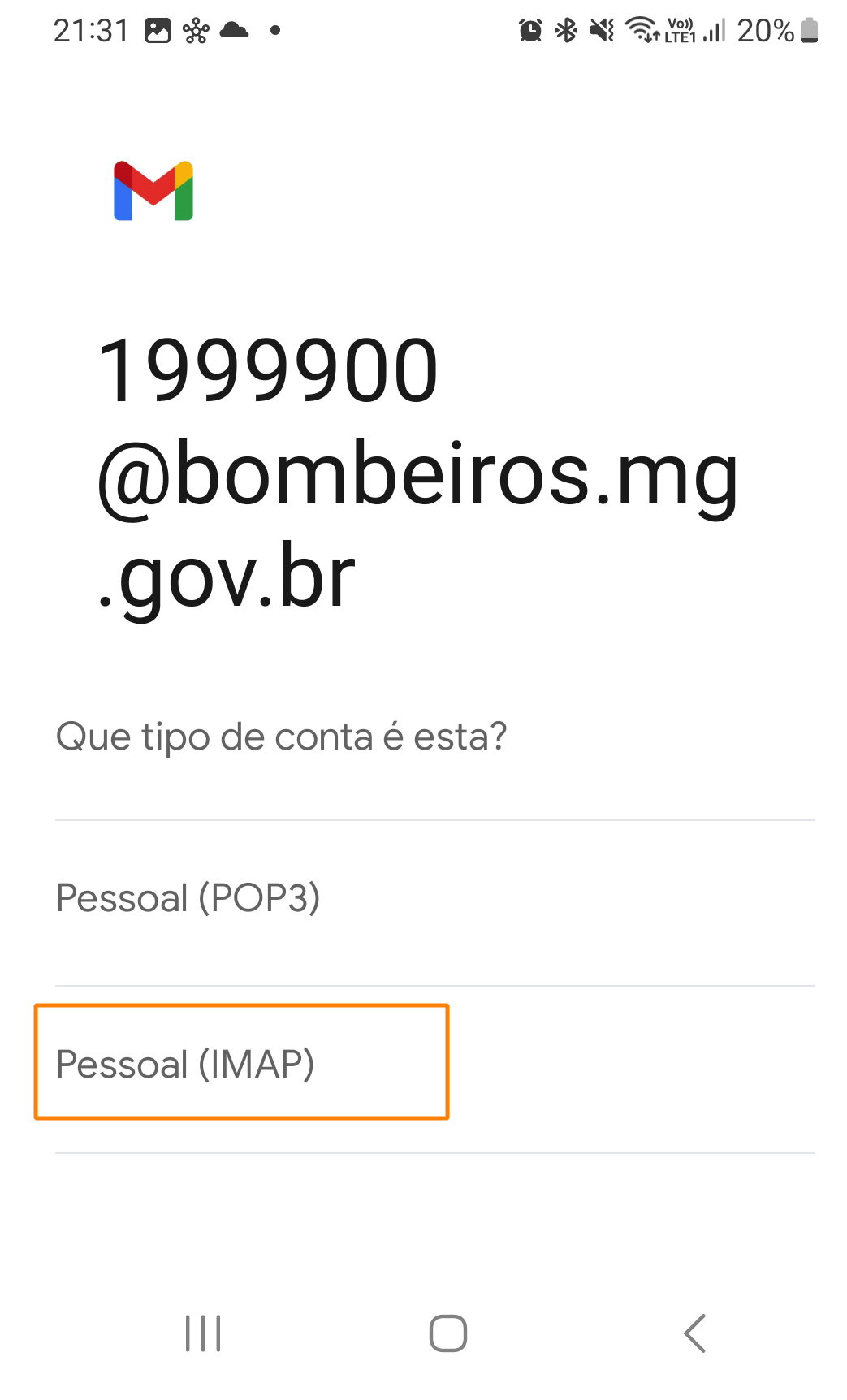
5. Selecione Tipo de Conta Pessoal (IMAP)

<figure><img src="https://3340378980-files.gitbook.io/~/files/v0/b/gitbook-x-prod.appspot.com/o/spaces%2FvUshNGdjZMsp4XIxI8Aj%2Fuploads%2FtE51rlnDhtNWQh1ka8aQ%2Fimage.png?alt=media&#x26;token=d6fc8d84-8909-4dd6-9c65-7a8a1bab284b" alt="" width="188"><figcaption></figcaption></figure>

<figure><img src="https://3340378980-files.gitbook.io/~/files/v0/b/gitbook-x-prod.appspot.com/o/spaces%2FvUshNGdjZMsp4XIxI8Aj%2Fuploads%2FrYC3J2SUIHlK8E9IdGX4%2Fimage.png?alt=media&#x26;token=db81ee89-95c4-4fc4-8504-21e05bdb07cb" alt=""><figcaption></figcaption></figure>

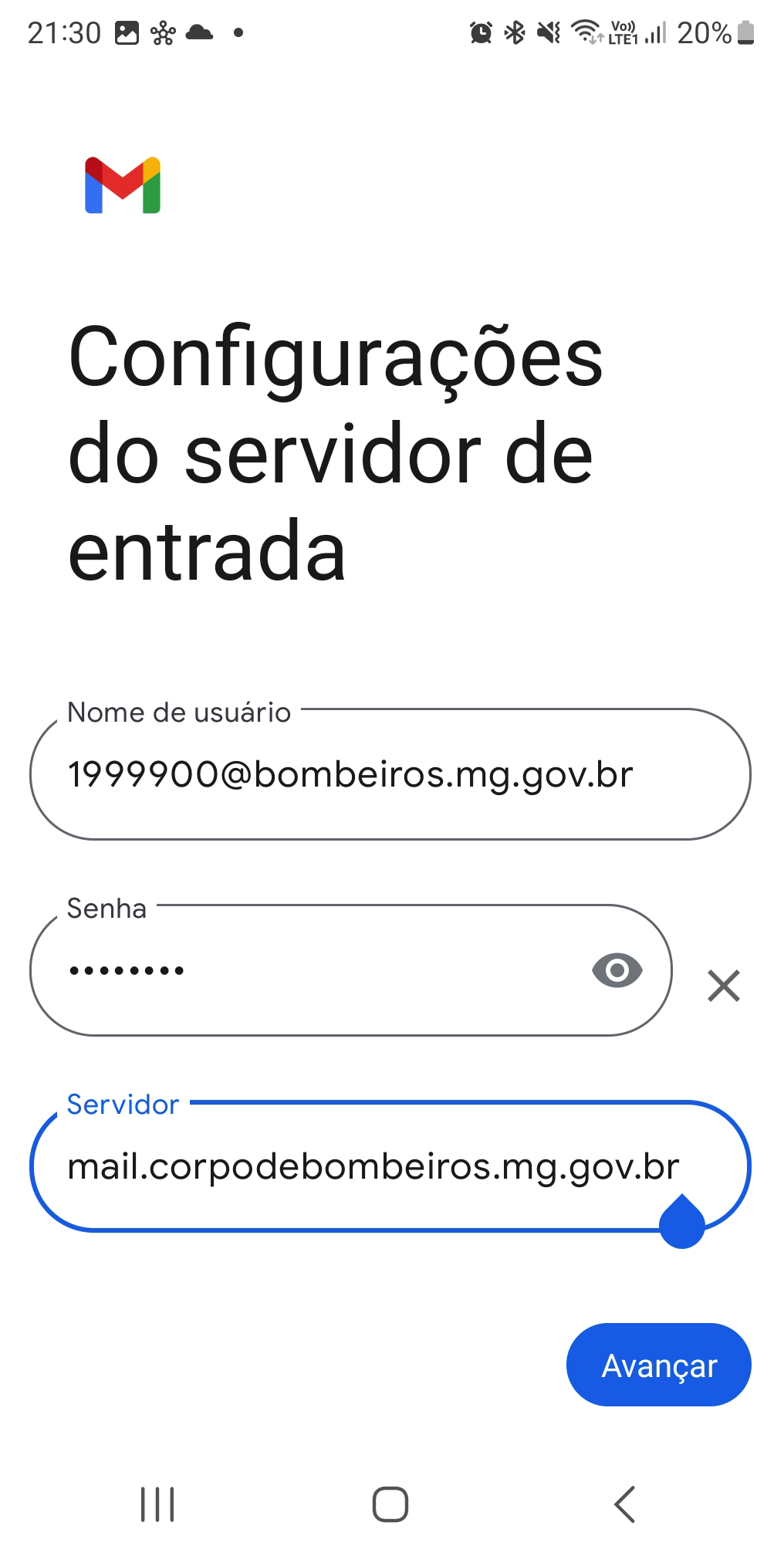
6. Entre com sua senha da sua conta de e-mail Chama!

<figure><img src="https://3340378980-files.gitbook.io/~/files/v0/b/gitbook-x-prod.appspot.com/o/spaces%2FvUshNGdjZMsp4XIxI8Aj%2Fuploads%2F2Xu69SlLyEMBXIfXKDgJ%2Fimage.png?alt=media&#x26;token=d2d5324f-023b-4f10-9b1f-3ab1e372f5bd" alt="" width="188"><figcaption></figcaption></figure>

<figure><img src="https://3340378980-files.gitbook.io/~/files/v0/b/gitbook-x-prod.appspot.com/o/spaces%2FvUshNGdjZMsp4XIxI8Aj%2Fuploads%2FrYC3J2SUIHlK8E9IdGX4%2Fimage.png?alt=media&#x26;token=db81ee89-95c4-4fc4-8504-21e05bdb07cb" alt=""><figcaption></figcaption></figure>

7. Em "Servidor", digite <mark style="color:orange;">**mail.corpodebombeiros.mg.gov.br**</mark>

<figure><img src="https://3340378980-files.gitbook.io/~/files/v0/b/gitbook-x-prod.appspot.com/o/spaces%2FvUshNGdjZMsp4XIxI8Aj%2Fuploads%2F1SU4j1XB8oLQguzxSCbL%2Fimage.png?alt=media&#x26;token=5c843dc3-0899-46a5-a598-e319ebe51974" alt="" width="188"><figcaption></figcaption></figure>

<figure><img src="https://3340378980-files.gitbook.io/~/files/v0/b/gitbook-x-prod.appspot.com/o/spaces%2FvUshNGdjZMsp4XIxI8Aj%2Fuploads%2FrYC3J2SUIHlK8E9IdGX4%2Fimage.png?alt=media&#x26;token=db81ee89-95c4-4fc4-8504-21e05bdb07cb" alt=""><figcaption></figcaption></figure>

8. Em "Servidor SMTP", digite <mark style="color:orange;">**mail.corpodebombeiros.mg.gov.br**</mark>

<figure><img src="https://3340378980-files.gitbook.io/~/files/v0/b/gitbook-x-prod.appspot.com/o/spaces%2FvUshNGdjZMsp4XIxI8Aj%2Fuploads%2FLS7LfkyBERDXp9Z46Igj%2Fimage.png?alt=media&#x26;token=fc8ebc9e-ff57-4f09-9b9c-8b71c37e04f1" alt="" width="188"><figcaption></figcaption></figure>

<figure><img src="https://3340378980-files.gitbook.io/~/files/v0/b/gitbook-x-prod.appspot.com/o/spaces%2FvUshNGdjZMsp4XIxI8Aj%2Fuploads%2FrYC3J2SUIHlK8E9IdGX4%2Fimage.png?alt=media&#x26;token=db81ee89-95c4-4fc4-8504-21e05bdb07cb" alt=""><figcaption></figcaption></figure>

9. Escolha as opções de sincronização e notificações e clique em avançar.

<figure><img src="https://3340378980-files.gitbook.io/~/files/v0/b/gitbook-x-prod.appspot.com/o/spaces%2FvUshNGdjZMsp4XIxI8Aj%2Fuploads%2FzdV5u3JG7UF8pOUsvxhQ%2Fimage.png?alt=media&#x26;token=94dc217a-50a7-424a-9f7e-17eb7950d0e2" alt="" width="188"><figcaption></figcaption></figure>

<figure><img src="https://3340378980-files.gitbook.io/~/files/v0/b/gitbook-x-prod.appspot.com/o/spaces%2FvUshNGdjZMsp4XIxI8Aj%2Fuploads%2FrYC3J2SUIHlK8E9IdGX4%2Fimage.png?alt=media&#x26;token=db81ee89-95c4-4fc4-8504-21e05bdb07cb" alt=""><figcaption></figcaption></figure>

Dê um nome para a conta (opcional) e Pronto! \
Sua conta do CHAMA! foi adicionada ao Gmail e estará pronta para envio e recebimento.

{% hint style="success" %}
Em caso de dúvidas, envie um email para <mark style="color:orange;">**<suporte.sistemas@bombeiros.mg.gov.br>**</mark>
{% endhint %}